

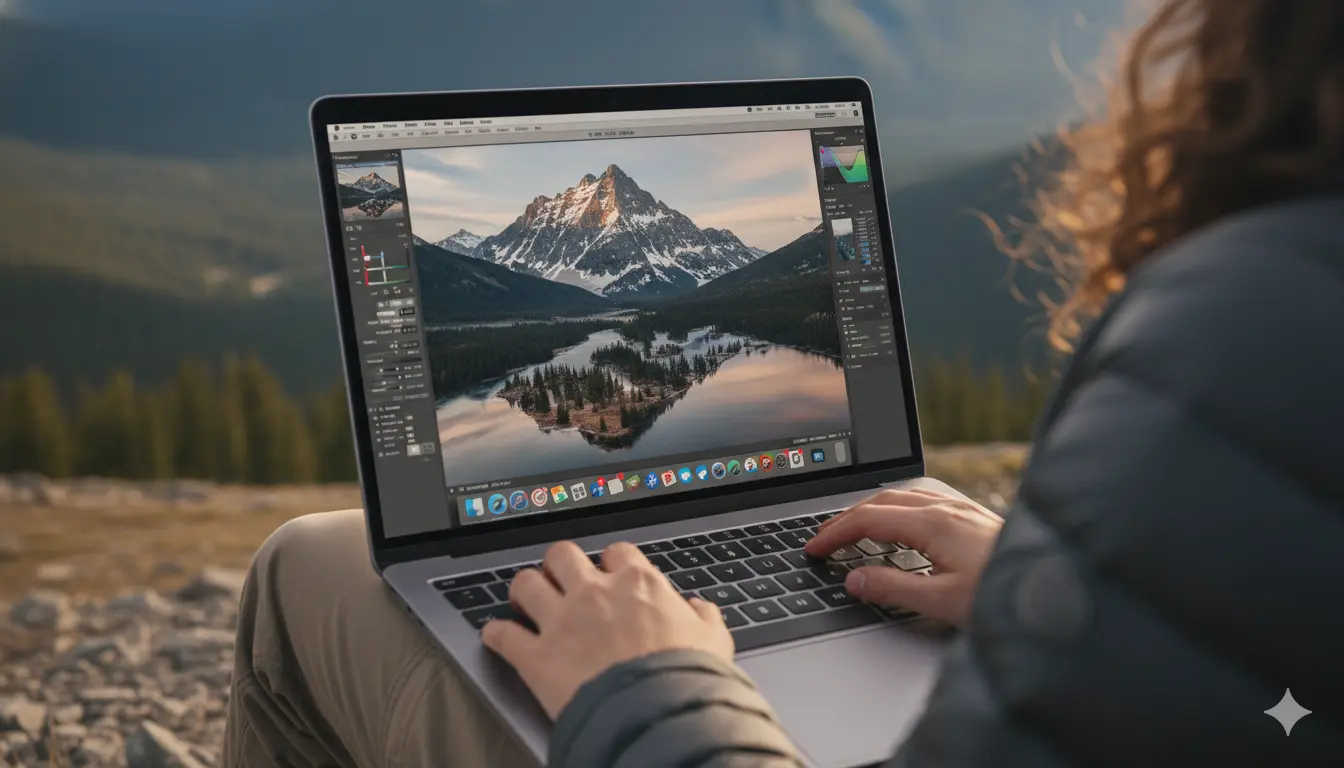

I still remember the first evening I tried AI image enhancement software on MacBook Pro. I was staring at a photo from my cousin’s wedding last month. The lighting was terrible, the image was grainy, and my aunt’s face was just a blur of pixels. I had one job, get a decent shot for the family album, and I’d blown it. Or so I thought.
That’s when I discovered what AI image enhancement software can actually do on a MacBook Pro. Within minutes, that unusable photo transformed into something I could actually print and frame. The noise vanished, the blur sharpened, and suddenly I looked like I knew what I was doing with a camera.
If you’ve ever felt that sinking feeling of looking at a photo you can’t use, you’re in the right place. In this guide, I’ll walk you through the five best AI image enhancement tools for MacBook Pro in 2025, what makes them different, and which one will actually solve your specific problem. I’ve tested them all, and I’m sharing everything.


Understanding AI Image Enhancement on MacBook Pro
Before we dive into specific software, let’s talk about what’s actually happening when you click that enhance button. AI image enhancement isn’t magic, though it sure feels like it sometimes. These tools use machine learning models trained on millions of images to understand what a high quality photo should look like.
When you feed a blurry or noisy image into the software, the AI analyzes the pixels and makes educated guesses about what details should be there. It’s like having a photo expert who’s seen every type of image problem and knows exactly how to fix it.
How AI Enhancement Works on MacBook Pro
Here’s where your MacBook Pro becomes important. Apple’s M1, M2, and M3 chips come with something called a Neural Engine, a dedicated processor built specifically for AI tasks. When software is optimized for this Neural Engine, processing happens incredibly fast compared to using just the CPU or GPU.

Think of it like this. Your regular processor is a general worker who can do any job, but the Neural Engine is a specialist trained specifically for AI work. Some of the software we’ll discuss takes full advantage of this, while others don’t. That difference matters when you’re processing a batch of 50 photos at 2 AM before a client deadline.
Did You Know? Apple’s Neural Engine in M3 chips can perform up to 18 trillion operations per second, making AI image processing up to 60% faster than previous generations.

Also Read: 4 Affordable Image Editing Softwares for Mac with AI That Won’t Burn Your Pocket
Top 5 AI Image Enhancement Software Reviews
Topaz Photo AI: The Restoration Specialist
Topaz Photo AI is what you reach for when a photo seems beyond saving. This software combines three powerful tools into one interface, noise reduction, sharpening, and upscaling. It’s the gold standard for pure image quality restoration.
The standout feature is Gigapixel upscaling. You can enlarge an image by 600% and instead of getting a pixelated mess, the AI invents plausible details to keep everything looking natural. I tested this on an old 2 megapixel image from 2005, and the results were genuinely surprising. The software added texture to clothing, recovered facial features, and made the image printable at poster size.
Topaz also includes an Autopilot mode that detects what’s wrong with your image and applies the right fixes automatically. No need to understand technical terms or tweak sliders endlessly. It just works. The Face Recovery feature specifically targets low resolution faces, making it essential if you’re restoring old family photos where faces matter most.
On MacBook Pro, Topaz runs natively on Apple Silicon and uses the Neural Engine for processing. However, it’s resource intensive. A single high resolution image can take 30 to 60 seconds to process on an M2 MacBook Pro. That’s slower than Pixelmator or Luminar, but the quality difference justifies the wait when you need the absolute best results.
Adobe Lightroom: The Industry Standard
If you’re already paying for Adobe’s Creative Cloud, you might not need additional software. Lightroom’s Denoise AI has earned respect from professional photographers for one critical reason, it works directly on RAW files before demosaicing. This preserves color accuracy better than processing JPEGs.
Many professionals I’ve talked to say Adobe’s noise reduction matches or exceeds Topaz for keeping natural texture in images. There’s no waxy or plastic look that sometimes happens with aggressive AI processing. The software understands the difference between film grain you want to keep and digital noise you want to remove.
Lightroom also includes Super Resolution, which doubles the linear resolution of your images. That’s a 4x increase in total pixels. It’s solid for printing needs, though it doesn’t offer the extreme enlargement capabilities or granular control of Topaz’s Gigapixel.
The integration is what sells Lightroom for many users. You’re already organizing and editing in this software, so having AI enhancement built in saves you from jumping between applications. The workflow stays smooth.
User Experience: “I shoot concerts in low light conditions, and Lightroom’s Denoise AI has saved countless shots I thought were unusable. The fact that it works on RAW files means I’m getting the cleanest possible result before any other processing happens.” – Marcus Chen, music photographer
Luminar Neo: The Creative Enhancer
Luminar Neo takes a different approach. While Topaz focuses on fixing pixels, Luminar focuses on making photos look better artistically. The AI understands the 3D depth of your image, allowing you to relight scenes or replace skies with a single click.
The Relight AI feature is particularly useful if you’ve ever shot a person with a bright window behind them. Instead of your subject being a dark silhouette, you can brighten just the foreground while keeping the background natural. It’s the kind of fix that would take an hour of masking in Photoshop, done in 10 seconds.
Luminar does include Noiseless AI and Supersharp AI extensions that compete with Topaz. They’re effective for most situations, though professionals generally consider them a step below Topaz for forensic level recovery work. For everyday photo improvement, they’re more than enough.
GenErase is another standout tool. It removes unwanted objects and fills the gap using generative AI. A random person walked into your landscape shot? Gone. Trash can in the corner ruining the composition? Vanished. The AI analyzes surrounding pixels and generates believable replacements.
Pixelmator Pro: The Mac Native Champion
Pixelmator Pro is built exclusively for Mac, and you can feel the difference. It’s the fastest option on this list for M series chips because every line of code is optimized for Apple’s ecosystem. If you want software that feels like an Apple product, this is it.
The ML Super Resolution was one of the first AI upscaling tools available on Mac. It produces clean, natural results without the artifacts you sometimes see in more aggressive enhancement software. The approach is conservative, Pixelmator won’t invent as much detail as Topaz, but what it does add looks believable and doesn’t introduce weird textures.
ML Denoise and Match Colors are fast, on device AI tools that handle common image problems efficiently. Processing happens almost instantly on M2 and M3 MacBooks. When you’re working through a large batch of images, that speed difference adds up significantly.
The real selling point is value. At around $50 for a one time purchase, Pixelmator Pro costs less than three months of Adobe’s subscription or a quarter of Topaz’s price. You own it forever with no recurring fees. For casual users or budget conscious professionals, this makes it incredibly attractive.
User Experience: “I switched from Photoshop to Pixelmator Pro last year and haven’t looked back. The ML Super Resolution is perfect for my needs as a web designer, and the fact that it’s a one time purchase means I’m not constantly justifying the expense.” – Sarah Williams, freelance designer
Aiarty Image Enhancer: The Upscaling Expert
Aiarty is the newest player in this space, having gained serious traction in 2024 and 2025. It’s built specifically for extreme upscaling, handling resolutions up to 32K with a focus on generating realistic details for skin and hair textures.
The More Detail GAN models are particularly strong with AI generated art from tools like Midjourney or Stable Diffusion. If you create AI art and need to upscale it for printing or detailed viewing, Aiarty handles this better than general purpose tools. The deblurring capabilities also rival Topaz in testing.
Batch processing is where Aiarty shines. You can queue up dozens of images, set your parameters once, and let it run overnight. For users who need to process large volumes of images regularly, this workflow advantage matters.
The software is newer, so it doesn’t have the same extensive user base or proven track record as Topaz or Adobe. However, early adopters report impressive results, and the pricing is competitive with frequent lifetime deals that undercut subscription models.
Detailed Comparison Table
| Software | Primary Strength | Best For | Mac Optimization | Pricing Model | Processing Speed |
|---|---|---|---|---|---|
| Topaz Photo AI | Restoration and extreme upscaling | Saving unusable photos, old photo restoration | Good (GPU/Neural Engine) | $199 (1 year updates) | Slow but thorough |
| Adobe Lightroom | RAW file noise reduction | Professional photographers | Excellent | $9.99/month (subscription) | Fast |
| Luminar Neo | Creative enhancement and relighting | Content creators, artistic editing | Very Good | $79/year or $119-199 lifetime | Fast |
| Pixelmator Pro | Speed and value | Budget users, everyday editing | Best (native Apple) | $50 (one-time purchase) | Very Fast |
| Aiarty Image Enhancer | Extreme upscaling and batch processing | High-volume processing, AI art | Good | Competitive (lifetime deals available) | Medium |
Pricing Breakdown: What You Actually Pay
Let’s talk real numbers because pricing models in this space can be confusing.
Topaz Photo AI costs $199 upfront. That includes one year of updates. After that year, you can keep using the version you have forever, but new features and improvements require paying for an upgrade. Most users end up paying every 1-2 years to stay current. Over three years, expect to spend around $300-400.
Adobe Lightroom runs $9.99 per month for the Photography Plan, which includes Photoshop. That’s $120 per year or $360 over three years. You’re always on the latest version, but you stop paying and you lose access to everything.
Luminar Neo offers both subscription at $79 per year and lifetime licenses ranging from $119 to $199 depending on sales. Here’s the catch, lifetime licenses often exclude future generative features that run on Skylum’s cloud servers. Read the fine print before buying.
Pixelmator Pro is the simplest. Pay $50 once, own it forever. All updates are free. This is the best pure value if the features meet your needs.
Aiarty Image Enhancer frequently offers lifetime deals around $99-149. They’re newer, so they’re aggressive with pricing to build market share. Standard subscriptions run similar to Luminar’s pricing.
Problem-Solving Guide: Which Tool for Which Issue?
Let’s get practical. You have a specific image problem, which software actually fixes it?
Fixing Blurry Images
For motion blur or out of focus shots, Topaz Photo AI is your best option. The Sharpen AI component analyzes different types of blur and applies the appropriate correction. I’ve rescued photos with significant camera shake that I thought were completely unusable.
Aiarty Image Enhancer also handles deblurring well, particularly for AI generated images. Luminar’s Supersharp AI works for mild blur but struggles with severe cases.
Removing Noise from Photos
If you’re working with RAW files, Adobe Lightroom’s Denoise AI is the professional choice. It preserves the most natural texture and color accuracy. For JPEG files or users who don’t shoot RAW, Topaz Photo AI produces excellent results across all noise types, from high ISO grain to compression artifacts.
Pixelmator Pro’s ML Denoise handles everyday noise situations quickly and effectively. It won’t match the others for extreme cases, but for typical indoor or low light shots, it’s more than adequate.
Upscaling Low-Resolution Images
This is where differences become stark. For moderate upscaling (2x to 4x), any of these tools work well. Pixelmator Pro’s ML Super Resolution produces natural looking results fast. Lightroom’s Super Resolution integrates seamlessly into your workflow.
For extreme upscaling beyond 4x, Topaz Photo AI’s Gigapixel component is the clear winner. It can enlarge images by 600% while maintaining believability. Aiarty Image Enhancer is the closest competitor for extreme upscaling, particularly if you’re working with AI generated content.
Restoring Old Photos
Old, damaged, or low quality historical photos need specialized care. Topaz Photo AI’s Face Recovery feature specifically targets low resolution faces, making it essential for family photo restoration. The combination of noise reduction, sharpening, and upscaling in one tool streamlines the workflow.
Luminar Neo’s GenErase can help remove scratches and damage marks before you enhance the image quality. Using both tools in sequence often produces the best results for seriously degraded photos.
Use-Case Recommendations
Different users have different needs. Here’s what makes sense for each situation.
Best for Professional Photographers
Stick with Adobe Lightroom Classic for your primary workflow. The Denoise AI for RAW files is industry leading, and you’re likely already using Lightroom for organization and basic editing. Add Topaz Photo AI as a secondary tool for the occasional image that needs extreme upscaling or has severe motion blur. This two tool approach covers 99% of professional needs.
Best for Content Creators
Luminar Neo is built for you. The creative enhancement tools like Relight AI, sky replacement, and GenErase let you fix common content creation problems quickly. The speed matters when you’re editing dozens of images for social media or blog posts. The subscription model also spreads the cost, which helps if you’re building a business.
Best for Casual Users
Pixelmator Pro wins here. The one time $50 purchase means no ongoing costs, the interface is intuitive for Mac users, and the ML Super Resolution handles typical enlargement needs. Processing speed on Apple Silicon makes it pleasant to use rather than a waiting game. Unless you have specific extreme needs, this covers everyday photo improvement beautifully.
Best for Budget-Conscious Users
Again, Pixelmator Pro. The value proposition is unbeatable. You get legitimate AI enhancement capabilities for less than one month of most subscriptions. If you need more specialized tools later, you can always add them, but start here and save money while learning what you actually need.
Did You Know? The Neural Engine in MacBook Pro M3 can process AI enhancement tasks while using less than 10% of total system power, meaning your battery life barely takes a hit even during intensive editing sessions.
Real User Feedback and Experiences
Let’s hear from people actually using these tools daily.
Professional Wedding Photographer, Jessica Martinez: “I bought Topaz Photo AI after a disaster wedding where the venue’s lighting was worse than expected. It saved 40 photos I thought I’d have to discard. The Face Recovery alone justified the $199 price. Now it’s my safety net for any challenging lighting situation.”
YouTube Content Creator, David Park: “Luminar Neo’s Relight AI changed my workflow. I shoot a lot of outdoor content where lighting is unpredictable. Being able to fix backlit subjects in seconds instead of spending 10 minutes masking in Photoshop means I can focus on creating more content instead of fixing problems.”
Graphic Designer, Emma Thompson: “Pixelmator Pro is the app I recommend to every designer switching to Mac. It’s fast, it’s affordable, and the ML Super Resolution means I can work with lower resolution stock photos and upscale them when needed. No subscription anxiety.”
Hobbyist Photographer, Robert Lee: “I tried the Adobe subscription and felt pressured to use it constantly to justify the cost. Buying Pixelmator Pro once and owning it forever removed that stress. I edit photos when I want to, not because I’m paying monthly.”
Pros and Cons of Each Software
Topaz Photo AI
Pros:
- Industry leading image restoration and upscaling capabilities
- Autopilot mode makes complex edits simple
- Face Recovery feature excellent for old photos
- Works with any file format
- One time purchase (though updates cost extra)
Cons:
- Expensive initial cost at $199
- Slower processing than competitors
- Updates require additional payment after first year
- Can be overwhelming for beginners with many options
- Resource intensive, requires powerful hardware
Adobe Lightroom
Pros:
- Best in class noise reduction for RAW files
- Seamless integration with photography workflow
- Always updated with latest features
- Cloud sync across devices
- Includes Photoshop in Photography Plan
Cons:
- Subscription only, no one time purchase option
- Costs add up significantly over years ($120 annually)
- Lose access to all work if you stop paying
- Super Resolution less capable than Topaz for extreme upscaling
- Requires internet connection for some features
Luminar Neo
Pros:
- Excellent creative enhancement tools
- Fast processing speeds
- GenErase and Relight AI are genuinely useful
- Option for lifetime license or subscription
- Regular feature updates
Cons:
- Lifetime licenses often exclude cloud based generative features
- Not as powerful as Topaz for pure quality restoration
- Can feel gimmicky with some preset heavy approaches
- Pricing structure confusing with multiple tiers
- Some features require internet connection
Pixelmator Pro
Pros:
- Fastest performance on Apple Silicon
- One time $50 purchase with free updates
- Native Mac app with excellent design
- ML Super Resolution produces natural results
- Lightweight and battery efficient
Cons:
- Mac only (not available for Windows)
- Less powerful than Topaz for extreme situations
- Smaller user community for troubleshooting
- Fewer specialized AI features than competitors
- Not ideal for extreme upscaling beyond 4x
Aiarty Image Enhancer
Pros:
- Excellent for extreme upscaling up to 32K
- Strong batch processing capabilities
- Competitive pricing with frequent deals
- Good results with AI generated art
- Improving rapidly with updates
Cons:
- Newer software with smaller track record
- Less comprehensive than established competitors
- Smaller user community and fewer tutorials
- Some users report inconsistent Mac optimization
- Not as well known for professional workflows
Limitations You Should Know About
AI image enhancement is powerful, but it’s not magic. Understanding the limitations helps set realistic expectations.
First, AI cannot truly create information that wasn’t captured. When software upscales an image or removes blur, it’s making educated guesses based on patterns it learned during training. Sometimes those guesses are wrong. You might see invented textures that look odd on close inspection, or facial features that don’t quite match reality.
Second, processing power matters. Even with Apple’s Neural Engine, high resolution images take time. If you’re batch processing hundreds of photos, you might be waiting hours depending on your settings and which software you use. Plan accordingly and don’t expect instant results for serious work.
Third, file formats affect results. RAW files give better results than JPEGs because they contain more data to work with. If you’re shooting important photos, shoot RAW when possible. The AI has more information to analyze and enhance.
Fourth, these tools work best as part of a workflow, not as miracle fixers. Starting with a decently exposed, properly focused image and enhancing it produces better results than trying to rescue a completely botched shot. Good technique still matters.
Finally, subscription fatigue is real. Between Adobe, Microsoft, Apple services, streaming platforms, and now photo editing software, the monthly costs add up. Consider whether you actually need the absolute best tool or if a one time purchase like Pixelmator Pro meets 90% of your needs for a fraction of the lifetime cost.
Future of AI Image Enhancement
The technology is evolving rapidly. Here’s what’s coming based on current trends and development.
Generative AI will become more prominent. We’re already seeing this with Luminar’s GenErase and Adobe’s Firefly integration. Soon, you’ll be able to describe what you want added or changed in natural language, and the AI will make it happen. “Make the sky more dramatic” or “add better lighting from the left” will become simple commands.
Real time enhancement during capture is next. Instead of shooting a photo and fixing it later, your camera or phone will apply AI enhancement as you shoot. Apple’s already doing some of this with computational photography in iPhones. Expect it to expand to professional cameras and more sophisticated editing.
On device processing will improve. As Neural Engines and similar AI processors become more powerful, processing times will shrink dramatically. What takes 30 seconds now might happen in 3 seconds on next generation hardware.
Cost will likely decrease. As competition increases and technology matures, prices tend to drop. We’re already seeing this with newer entrants like Aiarty offering aggressive pricing. Expect more capable software at lower price points.
Ethical questions will intensify. As AI becomes better at inventing details, questions about photo authenticity will grow. Is an AI enhanced photo still a photograph or is it AI art? Professional organizations and media outlets are already grappling with these questions.
FAQs
Can AI image enhancement software fix any photo?
No, there are limits. Severely underexposed images with no detail in shadows, massively overexposed images with blown highlights, or photos with extreme motion blur may be beyond recovery. AI works best when there’s some information to start with. Think of it as amplifying what’s there rather than creating something from nothing.
Do I need a MacBook Pro or will a MacBook Air work?
MacBook Air with M1, M2, or M3 chips works fine for most AI enhancement software. The Neural Engine is present in all Apple Silicon chips. MacBook Pro offers better sustained performance for very large batches because of improved cooling, but for typical use, Air is perfectly capable.
Which software is best if I only edit photos occasionally?
Pixelmator Pro makes the most sense. The $50 one time purchase means you’re not paying monthly for something you rarely use. It’s fast, handles common enhancement tasks well, and you own it permanently. For occasional use, the difference between Pixelmator and more expensive options won’t be noticeable.
Can these tools work with iPhone photos?
Yes, all of them handle JPEG images from iPhones. However, if your iPhone shoots in ProRAW format, using Lightroom or Topaz with those RAW files will give significantly better results than working with standard JPEGs. The extra data in RAW files gives the AI more information to work with.
Is the Adobe subscription worth it just for Lightroom’s AI features?
If you’re already using Lightroom for organization and editing, yes. The Denoise AI alone is valuable for anyone shooting in challenging lighting. However, if you’d only be using it occasionally for AI enhancement, the ongoing cost probably isn’t justified. Consider Pixelmator Pro or waiting for sales on Topaz instead.
How much storage space do these programs need?
Most require 2-5 GB for installation. However, the AI models can be large. Topaz Photo AI with all models installed needs about 8-10 GB. Adobe Lightroom needs similar space. Pixelmator Pro is the leanest at around 1 GB. Also consider space for processed images, which can be significantly larger than originals if you’re upscaling.
Final Verdict and Recommendations
After testing all five tools extensively, here’s what I’d recommend for different situations.
If you need the absolute best quality restoration and money isn’t the primary concern, buy Topaz Photo AI. It’s the industry leader for good reason. The results justify the $199 price when you’re dealing with important images or professional work where quality cannot be compromised.
If you’re a professional photographer already using Adobe’s ecosystem, stay with Lightroom. The Denoise AI for RAW files is exceptional, and the workflow integration saves time. Consider adding Topaz only if you regularly need extreme upscaling or face recovery capabilities.
If you create content regularly and need creative enhancement tools beyond pure quality improvement, Luminar Neo offers the best combination of features. The Relight AI and GenErase tools solve real problems quickly. The subscription model at $79 per year is reasonable for active creators.
If you want the best value and primarily need everyday enhancement capabilities, Pixelmator Pro is the clear winner. For $50 one time, you get legitimate AI enhancement optimized perfectly for Mac. The speed on Apple Silicon makes it pleasant to use, and no subscription means no ongoing costs or pressure to constantly use it.
If you work with extreme upscaling or large batches of AI generated art, give Aiarty Image Enhancer serious consideration. It’s newer but capable, and the pricing is competitive. The focus on batch processing and extreme resolutions fills a specific need.
My personal setup? I use Pixelmator Pro for 90% of my work because it’s fast, affordable, and handles everyday needs beautifully. For the occasional image that needs serious rescue work, I have Topaz Photo AI. That combination covers everything I encounter without breaking the bank or slowing me down.
Remember, the best software is the one you’ll actually use. A $200 tool sitting unused because it’s too complex or slow isn’t better than a $50 tool you use regularly. Start with what makes sense for your actual needs and budget, not what the most demanding professionals use. You can always add specialized tools later if you discover specific needs.
What image problems are you trying to solve on your MacBook Pro? Are you rescuing old family photos, preparing images for professional work, or just trying to make your vacation shots look better? The answer to that question should guide your choice more than any feature list or benchmark.
Drop a comment below sharing which software you’re leaning toward and what you’ll use it for. I’d love to hear what specific challenges you’re facing with your images.
